Your website got hacked. Here's what to do in the first hour.
You open your website and something's off. Maybe there's a page you didn't write, or it sends you to a site you've never heard of. Maybe it's a Google warning, or an email from a customer asking why your site is suddenly selling sunglasses.
The first hour matters, but not because you have to fix everything in it. What matters is avoiding the panic moves, like deleting files or restoring an old backup right away, because those often make the cleanup harder. Here's what to do, in order.
1. Make sure it's really a hack
Not every strange thing is a hack. These usually mean it is:
- Visitors get sent to unrelated sites, sometimes only on phones or only when they arrive from Google.
- Pages, links or text show up that nobody on your team added.
- Your browser or Google says the site "may be harmful."
- Your host emails you about suspicious files, or suspends the account.
- People get spam that appears to come from your domain.
A site that's simply down, or a layout that broke after an update, is usually a different problem.
Check from a phone on cellular data and from a private browser window. Some hacks hide themselves from anyone logged in as an admin, so the site can look fine to you and not to your visitors.
2. Call your host or developer before you touch anything
Tell them what you saw, when you saw it, and which pages it was on. Screenshots help a lot. If 3by400 hosts your site, open a support ticket so it's tracked from the start.
3. Don't delete anything yet
Deleting the strange files feels like progress, but it also wipes out the clues to how the attacker got in. If that way in isn't closed, the hack almost always comes back.
The same goes for restoring a backup right away. If the backup was made after the break-in, or the hole is still open, you end up right back where you started. Let whoever's doing the cleanup make a copy of the site as it is now first.
4. Change passwords in the right order
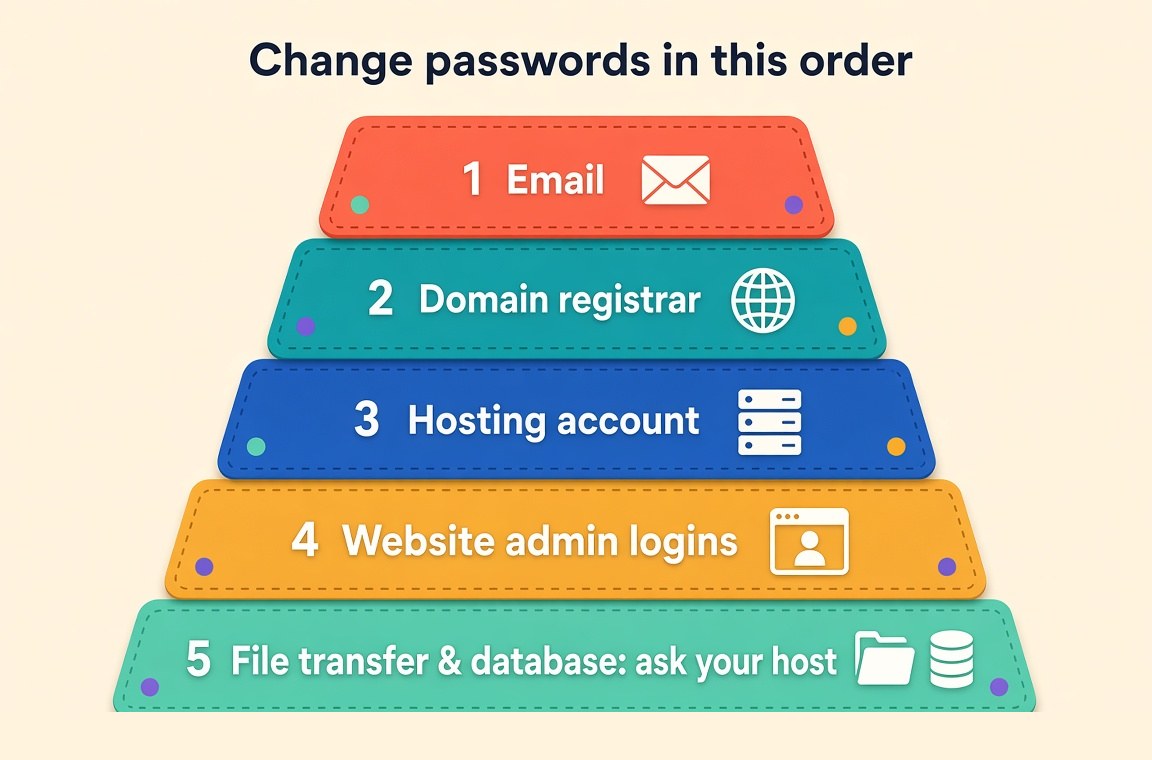
Start with the accounts that control everything else:
- Your email. Password resets for every other account go there.
- Your domain registrar, the company you pay for your web address.
- Your hosting account, including any control panel login.
- Your website's admin logins. Change every admin password. If you see admin users you don't recognize, write them down and tell your developer.
- File transfer and database passwords. Ask your host to change these. Changing the database password without also updating the site's settings will take the site offline.
Do this from a computer you trust. If your own computer might be infected, use a different one. Turn on two-step login (a code from your phone on top of the password) wherever it's offered.
If you're not sure who even has the logins for your domain and hosting, start with who owns your website, really?
5. Find out whether customer information was involved
Ask yourself a few questions:
- Does your site take card payments directly, or does it send people to a payment service like PayPal or Stripe?
- Does it store customer accounts, form submissions or uploaded files?
If the site collects personal information, ask your developer to check whether that data was accessed. If it might have been, talk to whoever handles legal questions for your business about whether you need to notify anyone. The rules depend on your state and the kind of data, so don't guess.
6. Decide what to tell people
If customers saw something strange, a short, factual note beats silence. Say what happened, what you're doing about it, and whether they need to do anything. You don't need to share technical details you don't have yet.
What happens after the first hour
A proper cleanup does more than remove the bad code. It also:
- Finds how the attacker got in. Common ways in are an out-of-date extension or plugin, a reused password, or an old, forgotten site on the same hosting account.
- Removes everything the attacker added, including hidden admin users and files tucked away to let them back in.
- Updates the site's software and add-ons.
- Checks Google Search Console (Google's free tool that shows site owners how Google sees their site) for warnings, and asks Google to review the site once it's clean.
This is also a good time to look at what your hosting plan actually covers. Here's what managed hosting actually means, and here's what ongoing website care looks like once the site is back to normal.
The short version
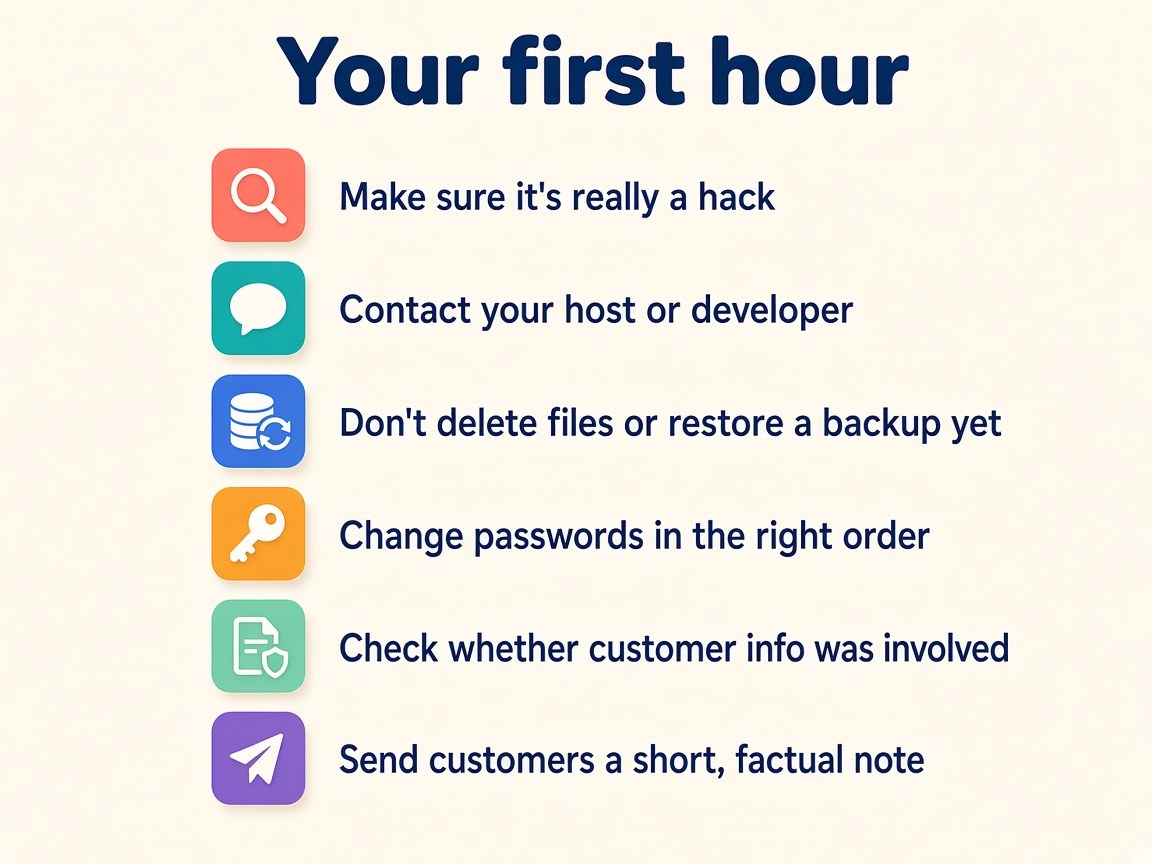
- Make sure it's really a hack, checking from a phone and a private window.
- Contact your host or developer before you change anything.
- Don't delete files or restore a backup yet.
- Change passwords in this order: email, domain, hosting, site admin, then ask your host about the rest.
- Find out whether customer information was involved.
- Send customers a short, factual note if they saw something.