Using Joomla instead? See How to Add, Resize, and Caption Images in Joomla (with Alt Text).
This covers the WordPress 6.x block editor and the built-in Media Library.
Before you upload: size and format
Large images slow your site down. Before uploading:
- Width: resize to about the largest size it will display. As a rule of thumb, we recommend about 1920px wide for full-width banners, about 1200px for images that span the main content area, and about 800px or less for images that sit beside text. Your theme may differ, so ask us if you're not sure. WordPress also creates smaller copies automatically and scales down very large uploads (over 2560px).
- Format: use JPEG or WebP for photos, and PNG for graphics with sharp edges or transparency.
- Compress: run photos through a compression tool or your photo editor's "export for web" option before uploading. A JPEG quality setting around 70-80% usually looks the same to visitors and is much smaller. Smaller files mean faster pages, especially on phones.
- File name: use plain, descriptive names like
front-office-dalton.jpg, not IMG_4032.jpg.
Upload to the Media Library
- Go to Media > Add Media File (labeled Add New Media File or Add New in older versions).
- Drag files in or click Select Files.
You can also upload straight from the editor, as below.
Resize or crop in WordPress
- Go to Media > Library and click the image.
- Click Edit Image.
- Use Crop, the rotate and flip buttons, or Scale Image to set new dimensions.
- Click Save. WordPress keeps the original so you can restore it later.
Add an image to a page or post
- Open the page or post in the editor.
- Click + and choose the Image block (or type
/image).
- Choose Upload, Media Library, or Insert from URL.
- With the image selected, open the settings sidebar (top right) and fill in:
- Alternative text: see below.
- Resolution: pick Thumbnail, Medium, Large, or Full Size. Pick the smallest that looks good.
- Width / height or aspect ratio: to fine-tune the displayed size.
- To add a caption, click the Add caption button in the block toolbar (or the area under the image) and type.
- Use the toolbar's Align button to set alignment.
- Click Save.
You can also set alt text, captions, and titles in Media > Library so they're filled in when you reuse the image. Alt text set in the block applies to that spot only.
Featured images
In the Page or Post sidebar tab, click Set featured image. Your theme decides where it shows, often at the top of posts and in blog lists. Fill in its alt text in the Media Library.
Writing good alt text
Alt text is read aloud by screen readers and shown if an image doesn't load. It helps people and search engines understand the image.
- Describe what matters in the image in a short sentence: "Two technicians installing a heat pump outside a brick house."
- Don't start with "image of" or "picture of."
- If the image is a link or button, describe where it goes.
- If it's purely decorative, leave the alt text empty so screen readers skip it.
- Don't stuff it with keywords.
Prefer we handle it?
If you'd rather spend your time running your business, our team can take care of edits, updates, and upkeep for you. See Website Care & Hosting.
Many of the elders I know are not like my mom, who can e-mail, use most of the features on her cell phone, and spends time on the Internet every day—she can even handle a conference call on her phone—go, Mom! However, many seniors automatically get a glaze over their eyes at the mention of technology, especially those who were firmly implanted in a career before personal computers came onto the scene in the eighties. Don’t get me wrong…there are many out there like my mom who embrace it all. This month’s column is all about technology being marketed to seniors. Although these products are marketed to seniors, they can be of benefit to everyone, so whether you’re a golden-age techno geek or not, read on!
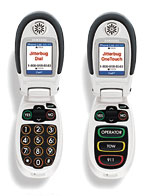 Cell Phones – Jitterbug
With a catchy jingle, Jitterbug is all about keeping it simple. These easy-to-operate cell phones minimize menus and buttons to simplify cell phone usage. These phones offer a larger text size on the screen, which I would sure appreciate myself. They also include extra padding on the earpiece, although the service doesn’t encourage long conversations.
One of the phone styles includes only three buttons from which to choose: operator, tow, and 911. No menus to fumble through and no icons. Having operator assistance to manage the contact list is an important feature for those who find typical cell phone menus confusing. The phones themselves cost less than $150.00 (no free phones with these packages) and 120 minutes a month runs about $30.00. What you get for that service, though, includes operator-assisted dialing for numbers in your phone book, and help whe you need it. There is also a one-time setup charge of $35.00. See www.jitterbug.com for more information.
Location Service - Project Lifesaver
This non-profit in Chesapeake, Virginia, is an innovative rapid response program aiding victims and families suffering from Alzheimer’s disease and related disorders such as Down syndrome and autism. Project Lifesaver relies on radio technology and a specially trained search-andrescue team. Clients enrolled in the Project Lifesaver program wear a personalized wristband that emits a tracking signal. When caregivers notify the local Project Lifesaver agency that the person is missing, a search-and-rescue team responds to the wanderer’s area and starts searching with the mobile locater tracking system. For more information, see www.projectlifesaver.org.
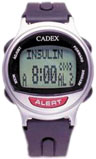 Medication Reminder
The e-pill CADEX watch has up to twelve daily alarms (medication reminders). The alarms auto-repeat every day, with no reset required. At the scheduled time, the alarm will sound and display the name of the medication to be taken. A medical “snooze” feature allows you to turn off the initial beeping and continue to be reminded with a subtle double beep every three minutes until you have taken your medications or performed a task. See www. cadexproducts.com/product.html for more on the e-pill Cadex watch, which retails for about $75.00 online. Med-Time XL is a device for dispensing medicine, reminding the user when medicine should be taken, and making the correct dose available. An alarm sounds and pills rotate into position. Lift up the device and turn the dispenser upside down to allow the pills to fall into your hand. All other medicine is inaccessible. Alarm stops by turning device upside down (or after 60 minutes). The Med-Time XL is ideal for anyone on a complex medication schedule or for those who have difficulty with manual dexterity. This same company also offers a version that is monitored. Sells for about $260.00 online. For more information, see www.epill.com/medtime.html.
AEDs (Automated External Defi brillator)
These portable electronic devices diagnose and treat cardiac arrest. Very much like those wired-up paddles you see in the emergency room with the nurse calling “Clear,” an onsite AED can truly be a lifesaver. This is particularly true if someone in your home has a track record of heart disease or if you are in a somewhat remote area. Many of them provide audio instruction once the device has been activated. AEDs start at about $1,000.00 and go up, depending upon brand and accessories. Check out www.cprflorida.net/aedform.htmlfor a great listing of the major brands, comparisons, and additional information.
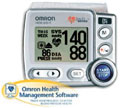 Blood Pressure
If you are currently being treated for high blood pressure, a home-based monitor can provide early warning of trouble. Although most people can tell when their blood pressure is increasing—my husband says he gets an intense throbbing in the back of his head; my sister gets light-headed and flushed—monitors take all of the guesswork out of whether your current activity is too intense or your stress level is too high. Most importantly, if you feel the signs of high blood pressure, checking at home can separate the false alarms from times when you should seek medial attention. My husband selected the Omron HEM-650, which clasps to your wrist and requires you to be completely still for about 30 seconds. We sometimes have trouble getting into a position where it can properly detect our heartbeat, but rest assured, we always manage to find it in the end. For a selection of heart monitors, see www.semedicalsupply.com/blood_ pressure.htm.
Insulin Monitors and Pumps
Diabetes can strike anyone, but as we age, our risks of developing diabetes become greater—it seems to be the price we pay for depriving our body of the diet and nutrition it requires over time. Insulin pumps are now providing diabetics with a viable method of long-term treatment. The MiniMed Paradigm REAL-Time System is made up of two components, a real-time continuous glucose monitoring (CGM) system, and an insulin pump. The real-time CGM System relays glucose readings every five minutes from a glucose sensor to the insulin pump, which displays to 288 readings a day—nearly 100 times more information than three daily fingersticks. Real-time glucose information displayed on the insulin pump allows patients to take immediate action to improve their glucose control after taking a confirmatory fingerstick. The real-time CGM System component is indicated for any patient 18 years of age or older, and insulin pump therapy for all patients requiring insulin. One review reported that these devices seem a bit cumbersome (both attach to the belly of the diabetic), but that the benefits far outweigh that aspect of the products. If you would like more information about these products, see www. minimed.com/products/insulinpumps. Although technology can seem daunting, it can also improve the adopter’s quality of life.
And remember, I’m a technologist, so be sure to ask your doctor if the medical-related items in this article are a good solution for you.
This article used with permission from 400 Edition, Inc. It is unlawful to use this article or any portion of it without the expressed permission of its author. This email address is being protected from spambots. You need JavaScript enabled to view it.
For a while now, any website that receives funding from the federal government has had to conform to guidelines that make the website accessibile to the disabled. The buzzword here is Section 508, after its location in the US legal code.
There's a small but lucrative sub-practice of web design that helps site owners pass muster in this area. But the net may be widening. According to a recent article in the Wall Street Journal, activists are pushing for a wider interpretation of the Americans with Disabilities Act (ADA). They argue that all e-commerce websites have to be 508-compliant.
So far, Target, Netflix and eBay have gone 508-compliant rather than get dragged through litigation. Will the activists push smaller e-commerce sites like yours? Will they press for ALL websites to be 508 compliant? Nobody knows yet, but we'll keep our ear to the ground and keep you informed as the saga unfolds.
An accessible website works for people who use screen readers, keyboards, captions, zoom, or other tools. It also tends to be easier for everyone to use. This checklist covers the basics, based on the Web Content Accessibility Guidelines (WCAG).
Note: this is a starting point, not legal advice. If you have specific legal requirements, check with your attorney.
Images
- [ ] Every meaningful image has alt text that describes it. See images in Joomla or images in WordPress.
- [ ] Decorative images are marked as decorative (empty alt text).
- [ ] Text isn't only in images. If it is, the same text is on the page too.
Headings and structure
- [ ] Each page has one H1 (the main title).
- [ ] Headings go in order (H2, then H3 under it) and aren't used just for big text.
- [ ] Lists use real list formatting.
Links and buttons
- [ ] Link text makes sense on its own, like "View our services" instead of "Click here."
- [ ] Links look like links (not just a different color).
- [ ] Buttons have clear labels.
Color and text
- [ ] Text has enough contrast with its background. Free contrast checkers can test this.
- [ ] Color isn't the only way information is shown (for example, required form fields are marked with text, not just red).
- [ ] The page still works when zoomed to 200%.
Keyboard
- [ ] You can reach and use every link, button, menu, and form with the Tab key.
- [ ] You can see where the focus is as you tab through the page.
- [ ] Pop-ups and menus can be closed with the keyboard.
Forms
- [ ] Every field has a visible label.
- [ ] Error messages explain what's wrong and how to fix it.
- [ ] CAPTCHAs have an accessible option.
Video and audio
- [ ] Videos have captions.
- [ ] Audio-only content has a transcript.
- [ ] Nothing plays automatically with sound.
Documents
- [ ] PDFs are accessible (tagged, with headings and alt text), or the same content is on a web page.
Testing
- Try using your site with just a keyboard.
- Run a free automated checker. Joomla 5 and 6 include an Accessibility Check button when editing articles.
- Automated tools only catch some problems, so test by hand too.
Keep it up
Accessibility isn't a one-time task. Every new page, image, and document needs the same care.
Related
How 3by400 can help
We build accessibility into the website design process and can review your current site.
Start a project
Ready to talk about your website? Start a project or reach us at 678-379-9321 or This email address is being protected from spambots. You need JavaScript enabled to view it.. We're based in Dalton, GA, and work with businesses everywhere.